Getting started
Connect-Kotlin is a thin library that provides support for using generated, type-safe, and idiomatic Kotlin APIs to communicate with the app’s servers using Protobuf.
In this guide, we’ll use Connect-Kotlin to create a chat app for ELIZA, a very simple natural language processor built in the 1960s to represent a psychotherapist. The ELIZA service is implemented using Connect-Go, is already up and running in production, and supports the gRPC, gRPC-Web, and Connect protocols - all of which can be used with Connect-Kotlin for this tutorial. The APIs we’ll be using are defined in a Protobuf schema that we’ll use to generate a Connect-Kotlin client.
Prerequisites
Section titled “Prerequisites”- Android Studio installed.
- The Buf CLI installed, and include it in the
$PATH. - Set up Virtual Device Configuration on Android Studio, or use a physical device.
Create a new Android project from Android Studio
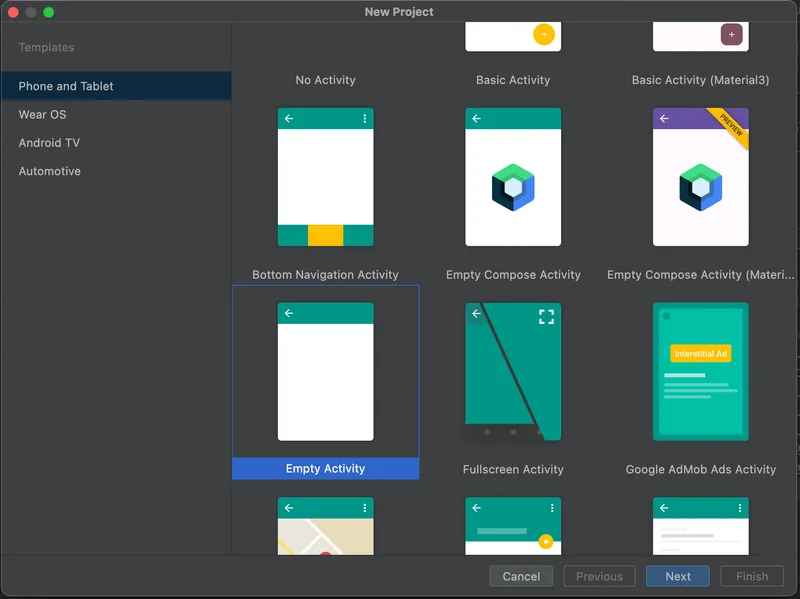
Section titled “Create a new Android project from Android Studio”Once Android Studio is set up, go through the setup wizard and select an empty Activity to start building an application:
- Create a new project with Android Studio.
- Select an empty activity for the project and click “Next”.
- For the project name, name it
Eliza. - Make sure the package is
com.example.eliza, and leave the rest as default.
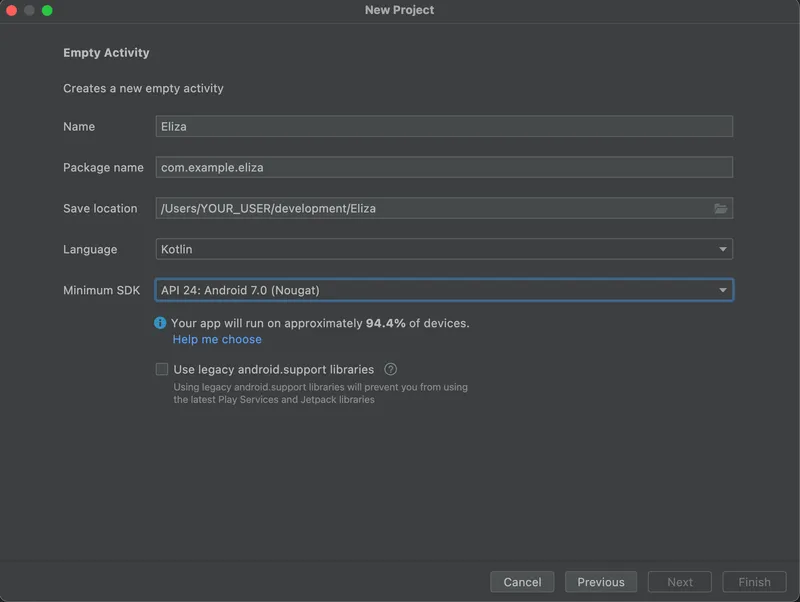
Create an Android application with Gradle and Android Studio. Now we can start defining a new API for talking with Eliza!
Define a service
Section titled “Define a service”First, we need to add a Protobuf file that includes our service definition. For this tutorial, we are going to construct a unary endpoint for a service that is a stripped-down implementation of ELIZA, the famous natural language processing program.
$ mkdir -p proto && touch proto/eliza.protoOpen up the above file and add the following service definition:
syntax = "proto3";
package connectrpc.eliza.v1;
message SayRequest {  string sentence = 1;}
message SayResponse {  string sentence = 1;}
service ElizaService {  rpc Say(SayRequest) returns (SayResponse) {}}
Open the newly created eliza.proto file in the editor.
This file declares a connectrpc.eliza.v1 Protobuf package,
a service called ElizaService, and a single method
called Say. Under the hood, these components will be used to form the path
of the API’s HTTP URL.
The file also contains two models, SayRequest and SayResponse, which
are the input and output for the Say RPC method.
Generate code
Section titled “Generate code”We’re going to generate our code using buf, a modern replacement for
Google’s protobuf compiler.
First, scaffold a basic buf.yaml by running buf config init at the root of your repository. Then, edit buf.yaml
to use our proto directory:
version: v2modules: - path: protolint: use: - DEFAULTbreaking: use: - FILEWe will use remote plugins, a feature of the Buf Schema Registry for generating code. Tell buf
how to generate code by creating a buf.gen.yaml:
$ touch buf.gen.yamlversion: v2plugins: - remote: buf.build/protocolbuffers/java out: app/src/main/java - remote: buf.build/connectrpc/kotlin out: app/src/main/javaThe above buf.gen.yaml config does two things:
-
Executes the protocolbuffers/java plugin to generate Java specific code for the .proto files and places its output in the gen directory.
-
Executes the connectrpc/kotlin plugin to generates clients for connect-kotlin. Compatible with the gRPC, gRPC-Web, and Connect RPC protocols into the specified directory. Connect is an RPC protocol which supports gRPC — including streaming! They interoperate seamlessly with Envoy, grpcurl, gRPC Gateway, and every other gRPC implementation. Connect servers handle gRPC-Web requests natively, without a translating proxy.
With those configuration files in place, generating Kotlin code can be easily done:
$ buf lint$ buf generateIn the app/src/main/java directory, there should now be some generated Java and Kotlin files:
app/src/main/java├── connectrpc│ └── eliza│ └── v1│ ├── Eliza.java│ ├── ElizaServiceClient.kt│ └── ElizaServiceClientInterface.kt└── com └── example └── eliza └── MainActivity.ktThe ElizaServiceClientInterface.kt file contains the interface for the
ElizaServiceClient, and the ElizaServiceClient.kt file contains the implementation that conforms
to this interface.
The .java file is generated by Google’s
Java plugin and contains the corresponding Java
models for the SayRequest and SayResponse we defined in our Protobuf file.
Update the application dependencies
Section titled “Update the application dependencies”Now, let’s bootstrap the Android application. Declare the following additional dependencies in our
app’s build.gradle.
dependencies { // ... implementation 'androidx.recyclerview:recyclerview:1.2.1' implementation "androidx.lifecycle:lifecycle-runtime-ktx:2.5.1" implementation "com.squareup.okhttp3:okhttp:4.10.0" implementation "com.connectrpc:connect-kotlin-okhttp:0.1.11" // Java specific dependencies. implementation "com.connectrpc:connect-kotlin-google-java-ext:0.1.11" implementation "com.google.protobuf:protobuf-java:3.22.0"}dependencies { // ... implementation 'androidx.recyclerview:recyclerview:1.2.1' implementation "androidx.lifecycle:lifecycle-runtime-ktx:2.5.1" implementation "com.squareup.okhttp3:okhttp:4.10.0" implementation "com.connectrpc:connect-kotlin-okhttp:0.1.11" // JavaLite specific dependencies. implementation "com.connectrpc:connect-kotlin-google-javalite-ext:0.1.11" implementation "com.google.protobuf:protobuf-javalite:3.22.0"}Once all the dependencies are declared, make sure Gradle is synced up.
Having trouble with Gradle files? Here is what one might look like:
plugins {  id 'com.android.application'  id 'org.jetbrains.kotlin.android'}
android {  namespace 'com.example.eliza'  compileSdk 33
  defaultConfig {    applicationId "com.example.eliza"    minSdk 24    targetSdk 33    versionCode 1    versionName "1.0"
    testInstrumentationRunner "androidx.test.runner.AndroidJUnitRunner"  }
  buildTypes {    release {      minifyEnabled false      proguardFiles getDefaultProguardFile('proguard-android-optimize.txt'), 'proguard-rules.pro'    }  }  compileOptions {    sourceCompatibility JavaVersion.VERSION_1_8    targetCompatibility JavaVersion.VERSION_1_8  }  kotlinOptions {    jvmTarget = '1.8'  }}
dependencies {  implementation 'androidx.core:core-ktx:1.7.0'  implementation 'androidx.appcompat:appcompat:1.6.1'  implementation 'com.google.android.material:material:1.8.0'  implementation 'androidx.constraintlayout:constraintlayout:2.1.4'
  implementation "androidx.recyclerview:recyclerview:1.2.1"  implementation "androidx.lifecycle:lifecycle-runtime-ktx:2.5.1"
  implementation "com.squareup.okhttp3:okhttp:4.10.0"  implementation "com.connectrpc:connect-kotlin-okhttp:$version"
implementation "com.connectrpc:connect-kotlin-google-java-ext:$version" implementation "com.google.protobuf:protobuf-java:3.22.0"}Set up an Android application
Section titled “Set up an Android application”Set up resources and Android XML
Section titled “Set up resources and Android XML”First, set up the res directory files by creating and copying the following files to the
project:
Create a new file in the layout directory called item.xml for a chat view item.
$ touch app/src/main/res/layout/item.xmlThe following layout XML is going to be used as the chat list item. It’s the XML representation of what a single chat entry looks like.
<?xml version="1.0" encoding="utf-8"?><LinearLayout xmlns:android="http://schemas.android.com/apk/res/android" android:orientation="vertical" android:layout_width="match_parent" android:layout_height="wrap_content" android:padding="5dp"> <TextView android:id="@+id/sender_name_text_view" android:layout_width="match_parent" android:layout_height="wrap_content" android:gravity="left" android:text="Eliza" android:textColor="#161EDE" android:visibility="gone" /> <TextView android:id="@+id/message_text_view" android:layout_width="wrap_content" android:layout_height="wrap_content" android:textColor="@android:color/black" /></LinearLayout>Next, we’ll need to set up our main view’s XML. This will be the view displayed on app launch.
<?xml version="1.0" encoding="utf-8"?><androidx.constraintlayout.widget.ConstraintLayout xmlns:android="http://schemas.android.com/apk/res/android" xmlns:app="http://schemas.android.com/apk/res-auto" xmlns:tools="http://schemas.android.com/tools" android:layout_width="match_parent" android:layout_height="match_parent" android:padding="5dp" tools:context=".MainActivity"> <TextView android:id="@+id/title_text_view" android:layout_width="match_parent" app:layout_constraintTop_toTopOf="parent" android:gravity="center" android:layout_height="40dp" /> <androidx.recyclerview.widget.RecyclerView android:id="@+id/recycler_view" android:layout_width="match_parent" android:layout_height="match_parent" app:layoutManager="LinearLayoutManager" app:layout_constraintTop_toBottomOf="@+id/title_text_view" app:layout_constraintBottom_toTopOf="@+id/edit_text_view" /> <EditText android:id="@+id/edit_text_view" android:layout_height="wrap_content" android:layout_width="match_parent" app:layout_constraintBottom_toBottomOf="parent" android:inputType="text"/> <Button android:id="@+id/send_button" android:layout_width="50dp" android:layout_height="50dp" app:layout_constraintBottom_toBottomOf="parent" app:layout_constraintRight_toRightOf="parent" /></androidx.constraintlayout.widget.ConstraintLayout>Lastly, make sure the AndroidManifest.xml declares the right permissions to make a network request.
Configure the application with network permissions by adding the following to AndroidManifest.xml
<?xml version="1.0" encoding="utf-8"?><manifest xmlns:android="http://schemas.android.com/apk/res/android"          package="com.example.eliza">
  <uses-permission android:name="android.permission.INTERNET"/>  <uses-permission android:name="android.permission.ACCESS_NETWORK_STATE"/>
  <application    android:allowBackup="true"    android:label="Eliza Connect App"    android:theme="@style/Theme.AppCompat.Light"  >    <activity      android:name=".MainActivity"      android:exported="true">      <intent-filter>        <action android:name="android.intent.action.MAIN"/>        <category android:name="android.intent.category.LAUNCHER"/>      </intent-filter>      <meta-data        android:name="android.app.lib_name"        android:value=""/>    </activity>  </application></manifest>
That is it for our resource files for our application!
Android Kotlin view scaffolding
Section titled “Android Kotlin view scaffolding”Before we start on making a network request, we’ll need to set up some plumbing.
In order to display a dynamic list of chat messages, we’ll need to construct a
RecyclerView along with some of it’s scaffolding and boilerplate.
Create a RecyclerView.ViewHolder and RecyclerView.Adapter in a file called ChatRecycler.kt.
We’ll be defining the MessageData data class to help manage the external usage in the next section.
$ touch app/src/main/java/com/example/eliza/ChatRecycler.ktand add the following:
package com.example.eliza
import android.view.Gravityimport android.view.LayoutInflaterimport android.view.Viewimport android.view.ViewGroupimport android.widget.LinearLayoutimport android.widget.TextViewimport androidx.recyclerview.widget.RecyclerView

class Adapter : RecyclerView.Adapter<ViewHolder>() {
  private val messages = mutableListOf<MessageData>()
  fun add(message: MessageData) {    messages.add(message)    notifyItemInserted(messages.size - 1)  }
  override fun onCreateViewHolder(viewGroup: ViewGroup, viewType: Int): ViewHolder {    val view = LayoutInflater.from(viewGroup.context)      .inflate(R.layout.item, viewGroup, false)    return ViewHolder(view)  }
  override fun onBindViewHolder(viewHolder: ViewHolder, position: Int) {    val messageViewModel = messages[position]    viewHolder.textView.setText(messageViewModel.message)    val layoutParams = viewHolder.textView.layoutParams as LinearLayout.LayoutParams    layoutParams.gravity = if (messageViewModel.isEliza) Gravity.LEFT else Gravity.RIGHT    viewHolder.textView.layoutParams = layoutParams
    if (messageViewModel.isEliza) {      viewHolder.senderNameTextView.visibility = View.VISIBLE    }  }
  override fun getItemCount(): Int {    return messages.size  }}
class ViewHolder(view: View) : RecyclerView.ViewHolder(view) {  val senderNameTextView: TextView  val textView: TextView
  init {    textView = view.findViewById(R.id.message_text_view)    senderNameTextView = view.findViewById(R.id.sender_name_text_view)  }}
data class MessageData(  val message: String,  val isEliza: Boolean)
Talk with Eliza on Android
Section titled “Talk with Eliza on Android”Now we are ready to dive into actual Kotlin code to speak with Eliza!
The ProtocolClient constructor requires a ProtocolClientConfig to be instantiated.
The required parameters are the host, serialization strategy, and protocol:
host: The host of the request (e.ghttps://demo.connectrpc.com).serializationStrategy: Configures theProtocolClientto use a specified base data type and encoding (e.g., Google’s Java and Google’s JavaLite).protocol: The underlying network protocol to use (e.g., Connect, gRPC, or gRPC-Web).
To use alternative serialization strategies or protocols, the ProtocolClientConfig can be instantiated with different
parameters:
val client = ProtocolClient( httpClient = ConnectOkHttpClient(OkHttpClient()), ProtocolClientConfig( host = host, serializationStrategy = GoogleJavaProtobufStrategy(), protocol = Protocol.CONNECT, ),)Use the generated Eliza client code
Section titled “Use the generated Eliza client code”With the ProtocolClient, we will be able to create an instance of ElizaServiceClient to talk with
the Eliza service.
By using the lifecycleScope, the underlying network request will be tied to the coroutine context provided.
To make the network request, we can call a simple method from the generated code:
ElizaServiceClient.say(request: SayRequest). With that result, we will be able to appropriately handle the
success and failure cases of the network request.
Open up the MainActivity.kt file and replace its contents with the following:
package com.example.eliza
import android.os.Bundleimport android.util.Logimport android.widget.Buttonimport android.widget.EditTextimport android.widget.TextViewimport androidx.appcompat.app.AppCompatActivityimport androidx.lifecycle.lifecycleScopeimport androidx.recyclerview.widget.RecyclerViewimport com.connectrpc.ProtocolClientConfigimport com.connectrpc.extensions.GoogleJavaProtobufStrategyimport com.connectrpc.impl.ProtocolClientimport com.connectrpc.okhttp.ConnectOkHttpClientimport com.connectrpc.protocols.NetworkProtocolimport connectrpc.eliza.v1.Elizaimport connectrpc.eliza.v1.ElizaServiceClientimport kotlinx.coroutines.Dispatchersimport kotlinx.coroutines.launchimport kotlinx.coroutines.withContext
class MainActivity : AppCompatActivity() {
  private val adapter: Adapter = Adapter()  private lateinit var titleTextView: TextView  private lateinit var editTextView: EditText  private lateinit var buttonView: Button  private lateinit var elizaServiceClient: ElizaServiceClient
  override fun onCreate(savedInstanceState: Bundle?) {    super.onCreate(savedInstanceState)    setContentView(R.layout.activity_main)    editTextView = findViewById(R.id.edit_text_view)    titleTextView = findViewById(R.id.title_text_view)    buttonView = findViewById(R.id.send_button)    // Default question to ask as a pre-fill.    editTextView.setText("I feel good.")    val recyclerView = findViewById<RecyclerView>(R.id.recycler_view)    recyclerView.adapter = adapter
    // Create a ProtocolClient.    val client = ProtocolClient(      httpClient = ConnectOkHttpClient(),      ProtocolClientConfig(        host = "https://demo.connectrpc.com",        serializationStrategy = GoogleJavaProtobufStrategy(), // Or GoogleJavaJSONStrategy for JSON.        networkProtocol = NetworkProtocol.CONNECT,      ),    )    // Create the Eliza service client.    elizaServiceClient = ElizaServiceClient(client)
    // Set up click listener to make a request to Eliza.    buttonView.setOnClickListener {      val sentence = editTextView.text.toString()      adapter.add(MessageData(sentence, false))      editTextView.setText("")
      lifecycleScope.launch {        // Ensure IO context for unary requests.        val elizaSentence = withContext(Dispatchers.IO) {          talkToEliza(sentence)        }        // Display the result        displayElizaResponse(elizaSentence)      }    }  }
  private suspend fun talkToEliza(sentence: String): String? {    // Make unary request to Eliza.    val response = elizaServiceClient.say(Eliza.SayRequest.newBuilder().setSentence(sentence).build())    val elizaSentence = response.success { success ->      // Get Eliza's reply from the response.      success.message.sentence    }    response.failure { failure ->      Log.e("MainActivity", "Failed to talk to eliza", failure.cause)    }    return elizaSentence  }
  private fun displayElizaResponse(sentence: String?) {    if (!sentence.isNullOrBlank()) {      adapter.add(MessageData(sentence, true))    } else {      adapter.add(MessageData("...No response from Eliza...", true))    }  }}
Serialization Strategies
Section titled “Serialization Strategies”When configuring the ProtocolClient in the MainActivity.kt, it is also possible to configure what type
of Google generated base data type to use via the ProtocolClientConfig.serializationStrategy.
In the example, we use GoogleJavaProtobufStrategy which is the Google generated Java data types with the
Protobuf serialization.
To use JSON with the Google generated Java data types, the GoogleJavaJSONStrategy can be used.
Additionally, the GoogleJavaLiteProtobufStrategy is for when there are binary size requirements where
the underlying data types are the Google generated data types with the javalite option.
Run the app
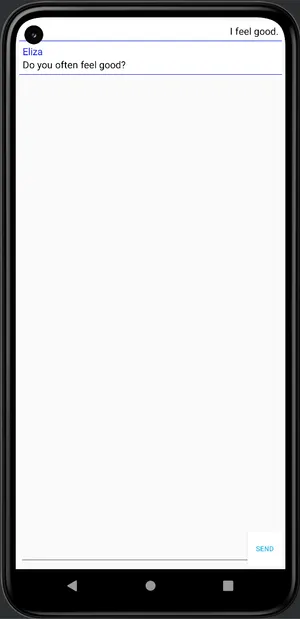
Section titled “Run the app”Now the app can be built and run via the play button on Android Studio. This will allow us to chat with Eliza!
Using the gRPC or gRPC-Web protocol
Section titled “Using the gRPC or gRPC-Web protocol”Connect-Kotlin supports the Connect protocol, the gRPC protocol, and the gRPC-Web protocol. Instructions for switching between the three can be found here.
We recommend using Connect-Kotlin over gRPC-java even when using the gRPC-Web protocol for a few reasons:
- Idiomatic, typed APIs. No more hand-writing REST/JSON endpoints and data types. Connect-Kotlin generates idiomatic APIs that utilize Kotlin’s language features and ergonomic improvements.
- Easy-to-use tooling. Connect-Kotlin integrates with the Buf CLI, enabling running all necessary Protobuf plugins without having to install or configure them as local dependencies.
- Flexibility. Connect-Kotlin uses
Okhttp. The library provides the option to swap this out.
More examples
Section titled “More examples”There are more detailed examples within the Connect-Kotlin repository on GitHub. These examples demonstrate:
- Using streaming APIs.
- Integrating with Google’s Java and JavaLite Protobuf.
- Using the Connect protocol.
- Using the gRPC protocol.
- Using the gRPC-Web protocol.